deadyet?

How a contact opts in

Every deadyet? contact opts in themselves, from their own phone. Here is exactly what they see. The screenshots below are from the deadyet? app and invitation pages, using an example user (Sam) and contact (Alex).

1. The user adds a contact in the app

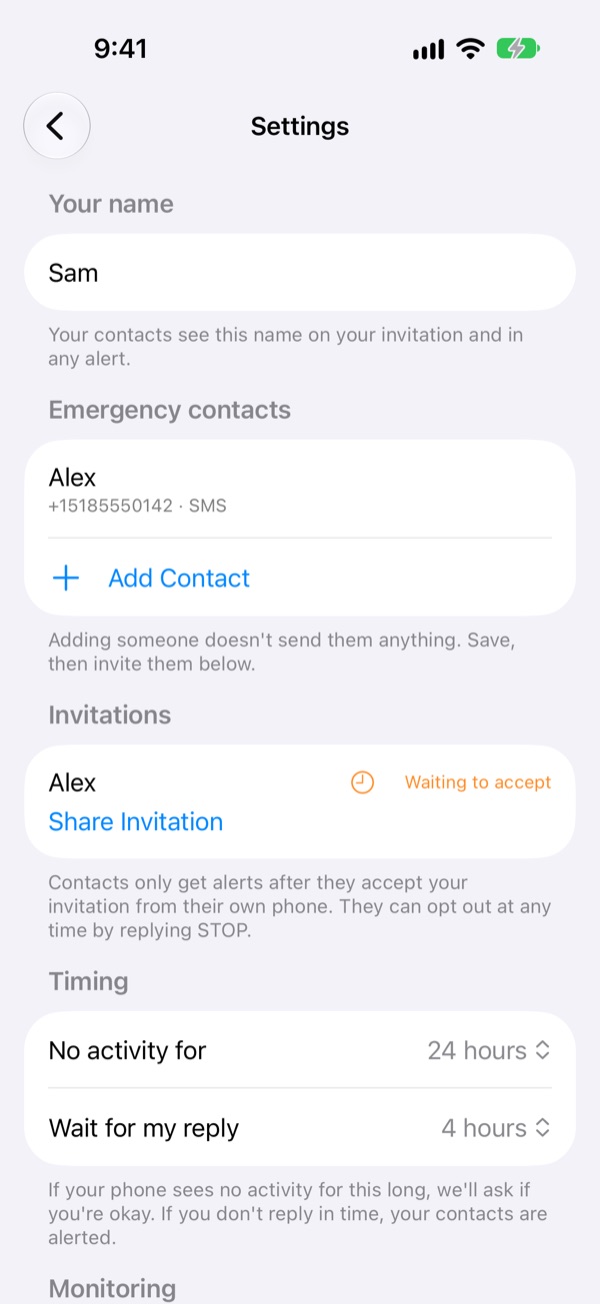
In the deadyet? app, the user enters a contact's name and phone number and chooses text messages, phone calls, or both. Saving the contact sends nothing. The app shows the contact as waiting to accept.
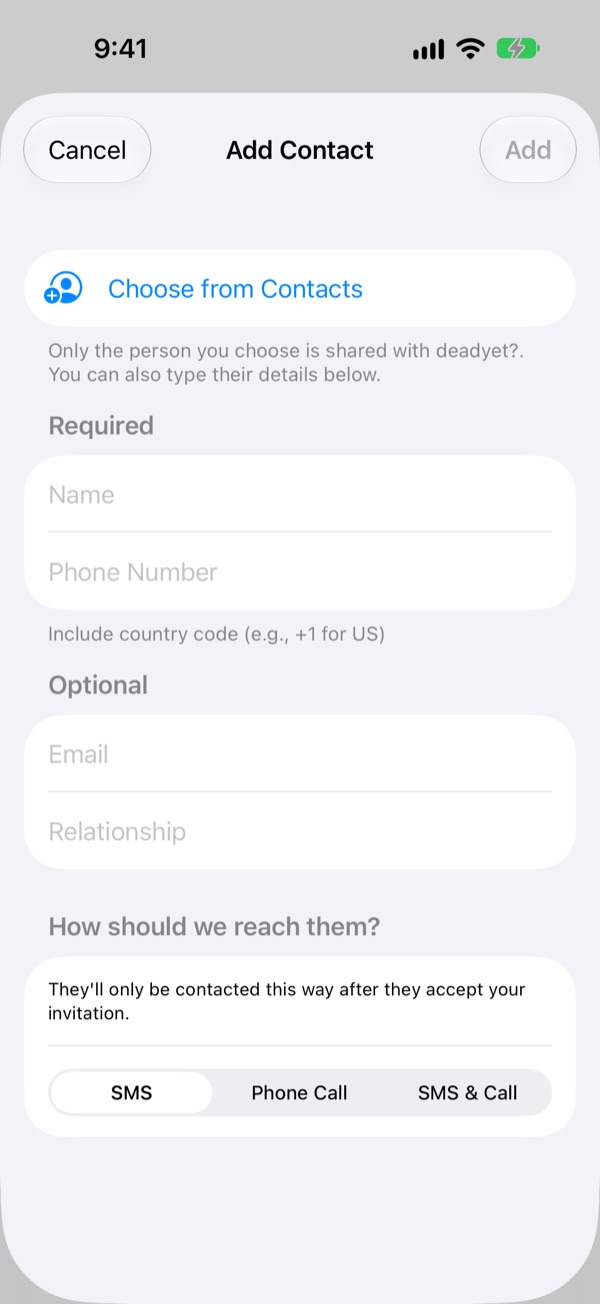
deadyet? Add Contact screen with name and phone fields and the note: They'll only be contacted this way after they accept your invitation.
Adding a contact. Nothing is sent.
deadyet? Settings showing contact Alex marked Waiting to accept.
The contact waits to accept.

2. The user shares a personal invitation link

The user taps Share invitation and sends the link to their contact themselves, using any app they like. deadyet? does not send invitations. Each link belongs to one contact and one phone number, and expires after 7 days.
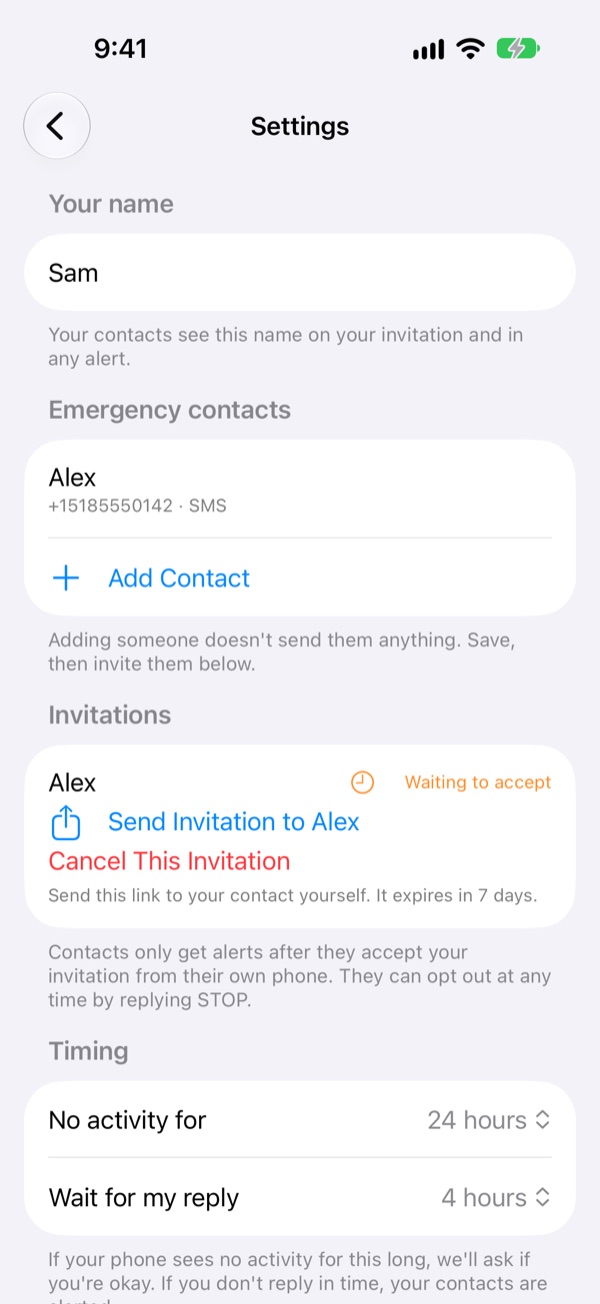
deadyet? invitation options: Send Invitation to Alex, Cancel This Invitation, and the note: Send this link to your contact yourself. It expires in 7 days.
The user sends the link themselves, using any app.

3. The contact reads the invitation

The link opens a page titled "Sam wants you as a safety contact". It explains that Sam uses deadyet?, which alerts contacts if Sam's phone stops showing activity and Sam doesn't respond to a check-in. It then shows the full terms:

By accepting, you agree to receive automated safety alerts from deadyet? (operated by The Flying Chicken LLC) if the person who invited you stops showing activity and does not respond to a check-in. Most people never receive a message. Message frequency varies. Message and data rates may apply. Reply STOP at any time to opt out, or HELP for help. deadyet? is not an emergency service and cannot guarantee delivery. Privacy policy: https://deadyetapp.com/privacy-policy. Terms: https://deadyetapp.com/terms.

Below the terms is an unchecked box, "I agree to receive these alerts", and an Accept button. The contact must check the box to continue.
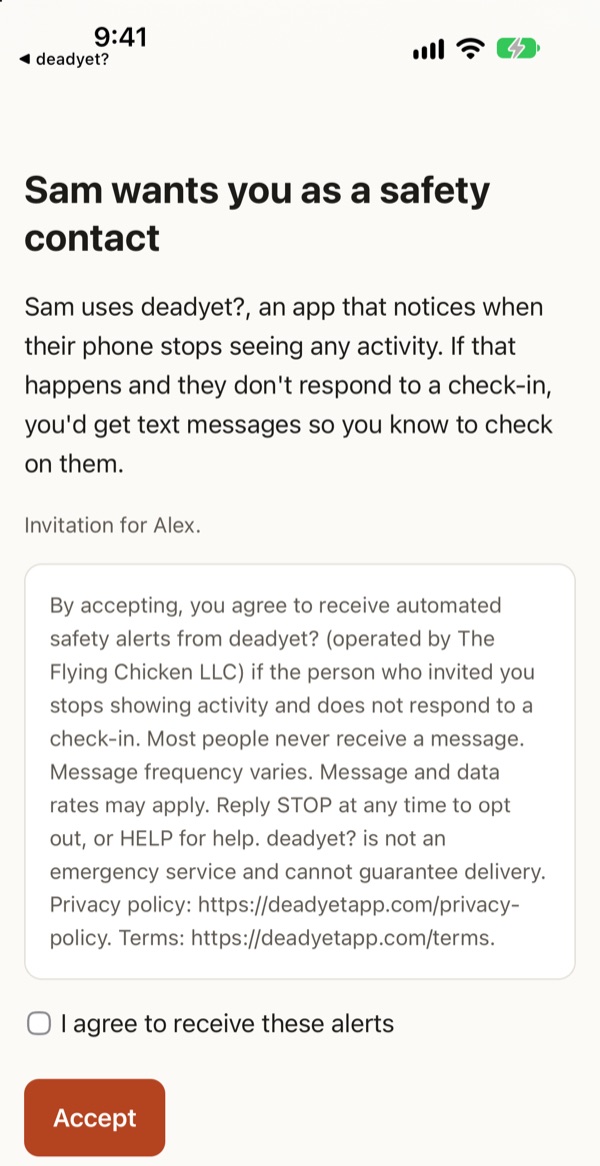
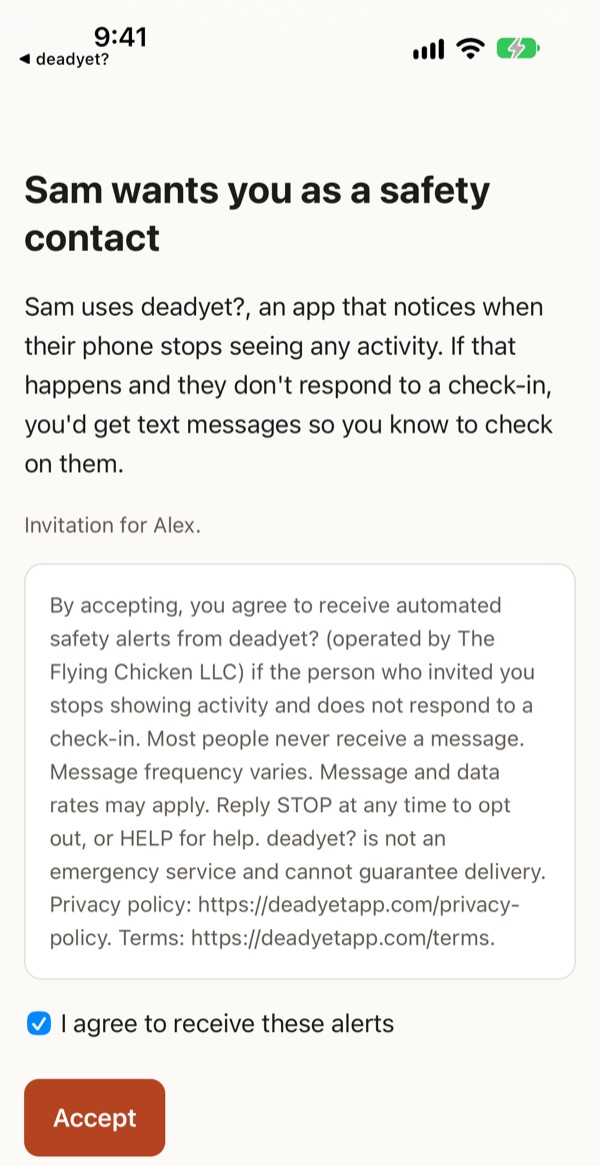
Invitation web page titled Sam wants you as a safety contact, showing the full terms and an unchecked I agree to receive these alerts box above the Accept button.
The invitation page. The box starts unchecked.
The same invitation page with the I agree to receive these alerts box checked.
The contact checks the box and taps Accept.

4. The contact confirms by sending a text

After tapping Accept, the page asks the contact to send one text from the invited phone number within 15 minutes, and offers an Open Messages button that fills it in:

ACCEPT 3F9A…C21B: Yes, send me deadyet? safety alerts about Sam by text messages. Msg frequency varies. Msg & data rates may apply. Reply STOP to opt out, HELP for help.

Nothing is sent to the contact at any point before this. deadyet? records consent only when this exact text arrives from the invited number. A text from a different number, an expired code, or an edited message is ignored.
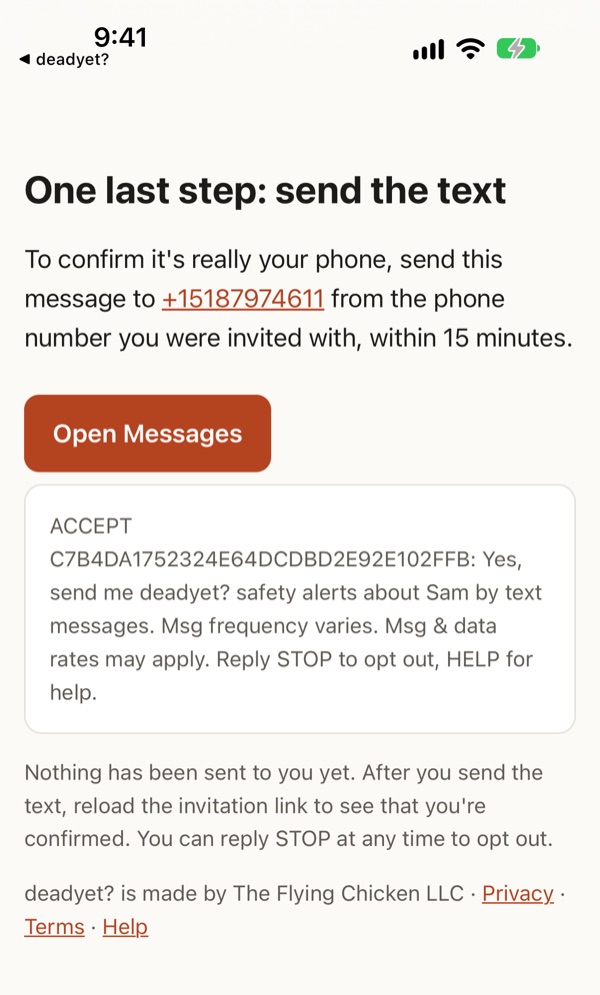
Page titled One last step: send the text, asking the contact to text the ACCEPT message to +15187974611 from the invited number within 15 minutes, with an Open Messages button.
The contact confirms by texting from their own phone.

5. The contact is confirmed

deadyet? replies once to confirm:

deadyet?: You're now a safety contact for Sam. We'll only text if they stop showing activity and miss a check-in. Msg frequency varies. Msg & data rates may apply. Reply HELP for help, STOP to opt out.

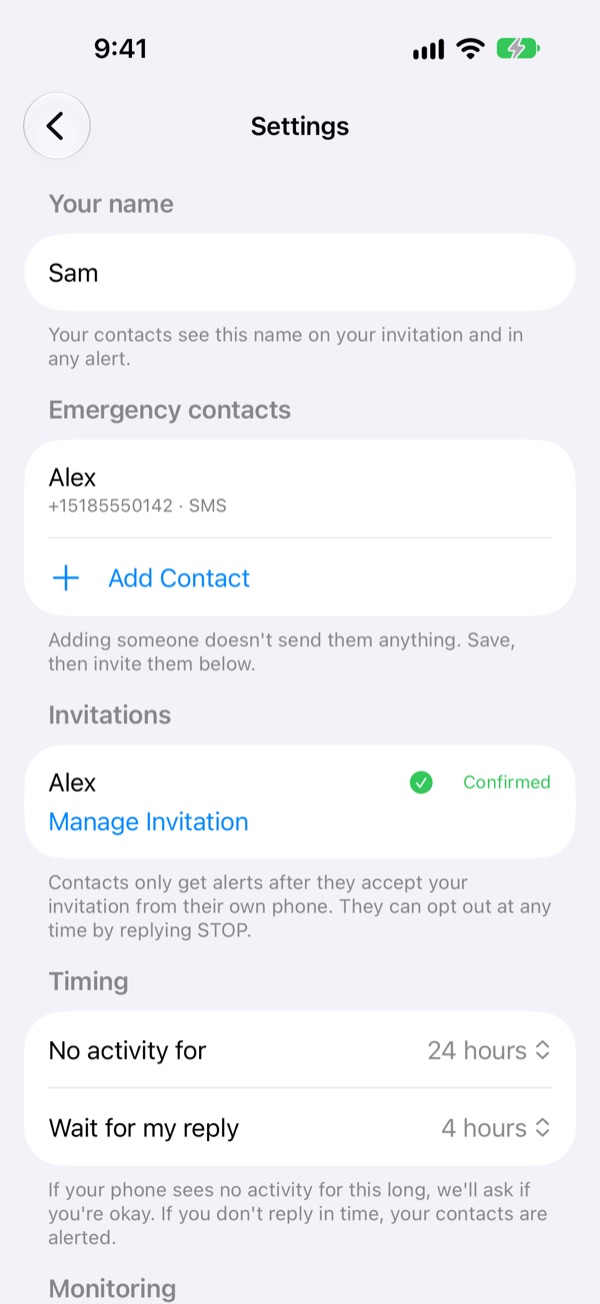
The user's app now shows the contact as confirmed. The contact will only hear from deadyet? if the user stops showing activity and doesn't respond to a check-in. Every message ends with "Reply STOP to opt out".
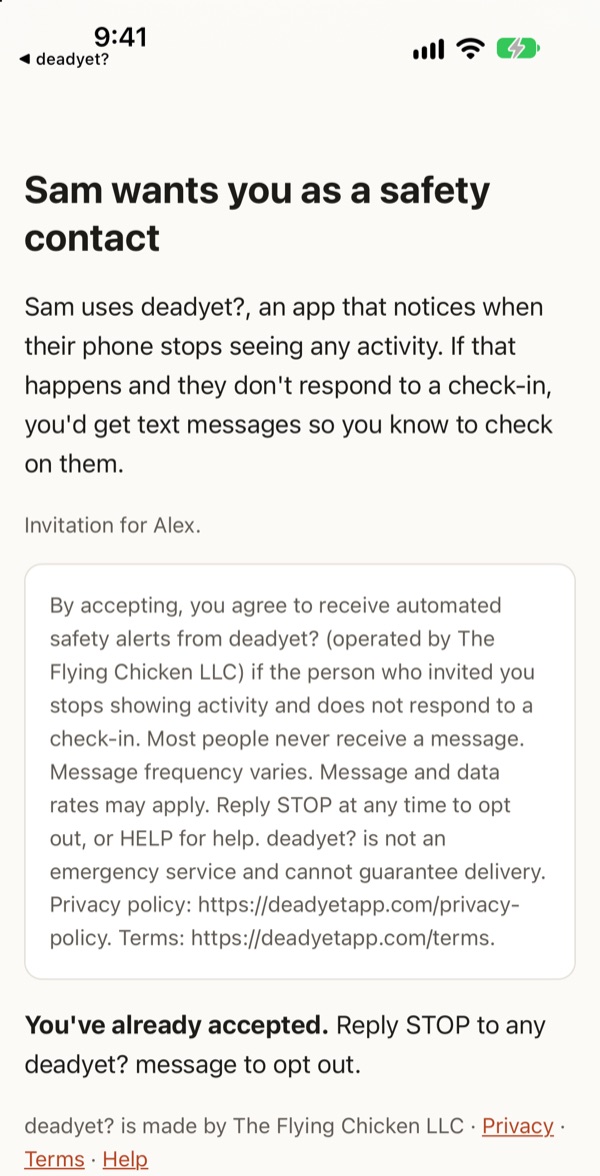
Invitation page after confirmation reading: You've already accepted. Reply STOP to any deadyet? message to opt out.
The invitation link after confirming.
deadyet? Settings showing contact Alex marked Confirmed.
The user's app shows the contact as confirmed.

More details: text message terms · privacy policy · terms.